
Tunnel Setter Operating Guide
I. Basic Operations
Section titled “I. Basic Operations”Contents / Navigation: 1 Power-on and login 2 Control panel 3 Parameter adjustment 4 Basic operations
1 Power-on and login
Section titled “1 Power-on and login”1.1 The two physical switches outside the machine
Section titled “1.1 The two physical switches outside the machine”Look at the outside of the machine: a green button and a black rotary knob.
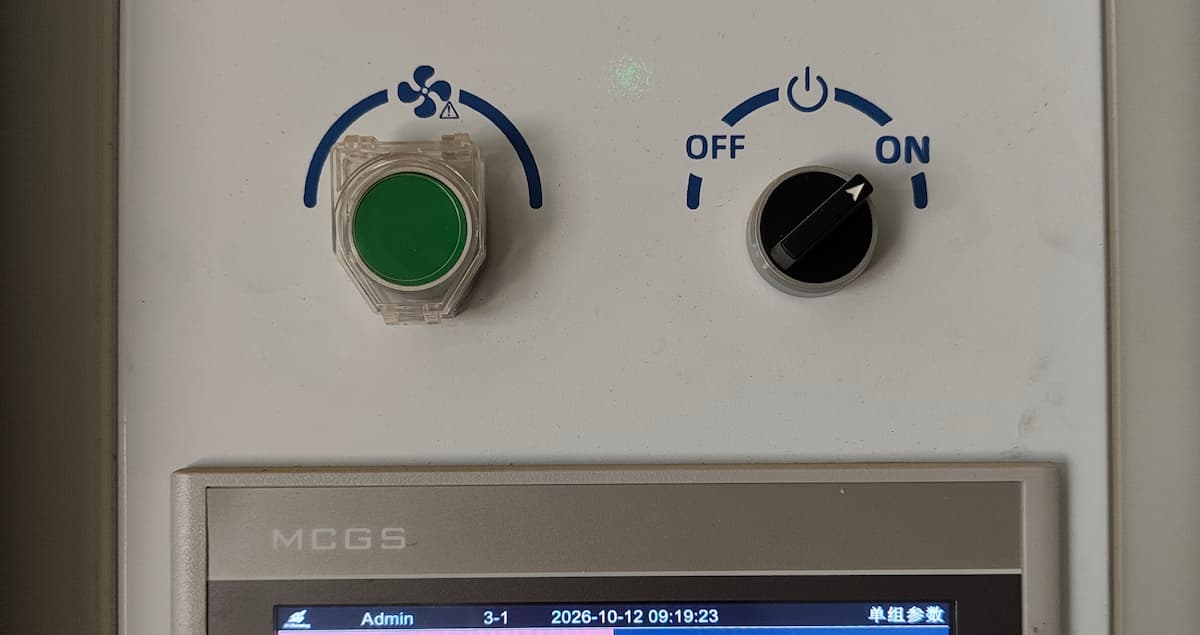
The green emergency fan button has the highest priority and is not controlled by the software. Even if the control system fails, pressing this button still runs the fans, so that eggs in the late stage of incubation are not lost in large numbers to heat build-up and the inability to dissipate it. Do not use it under normal conditions. The black rotary knob is the power switch.
1.2 Power-on
Section titled “1.2 Power-on”Turn the knob to the right until the arrow points to ON. Wait a moment for initialisation. Once the operating screen appears, tap “Start now”. On the main screen the hardware is already running, but parameters cannot yet be changed. Look at the user icon in the top left corner and tap it to open the login page.
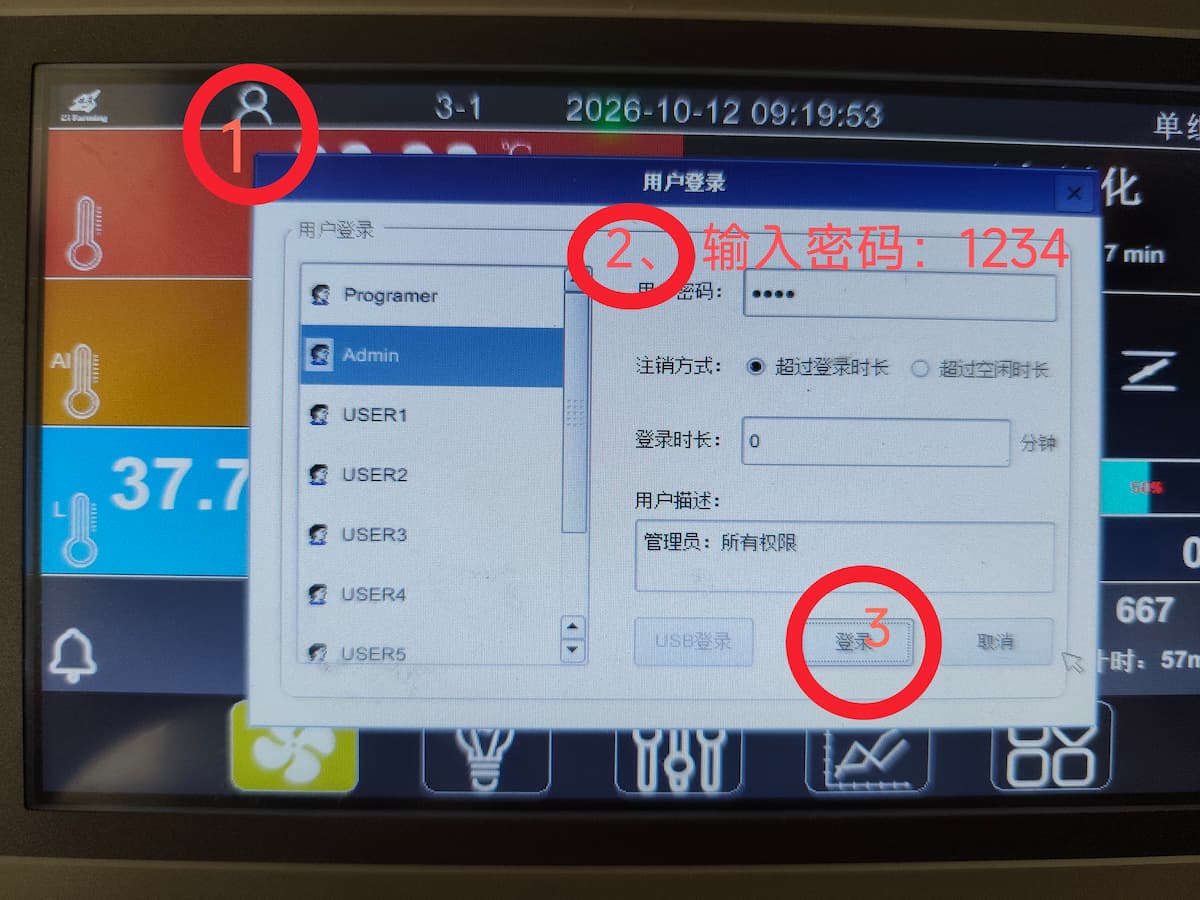
Select Admin. Password 1234. Log in. After logging in, the icon in the top left changes from the user head to the word Admin, which means the login succeeded. You now have full permissions and can carry on.
2 Control panel
Section titled “2 Control panel”2.1 Temperature area
Section titled “2.1 Temperature area”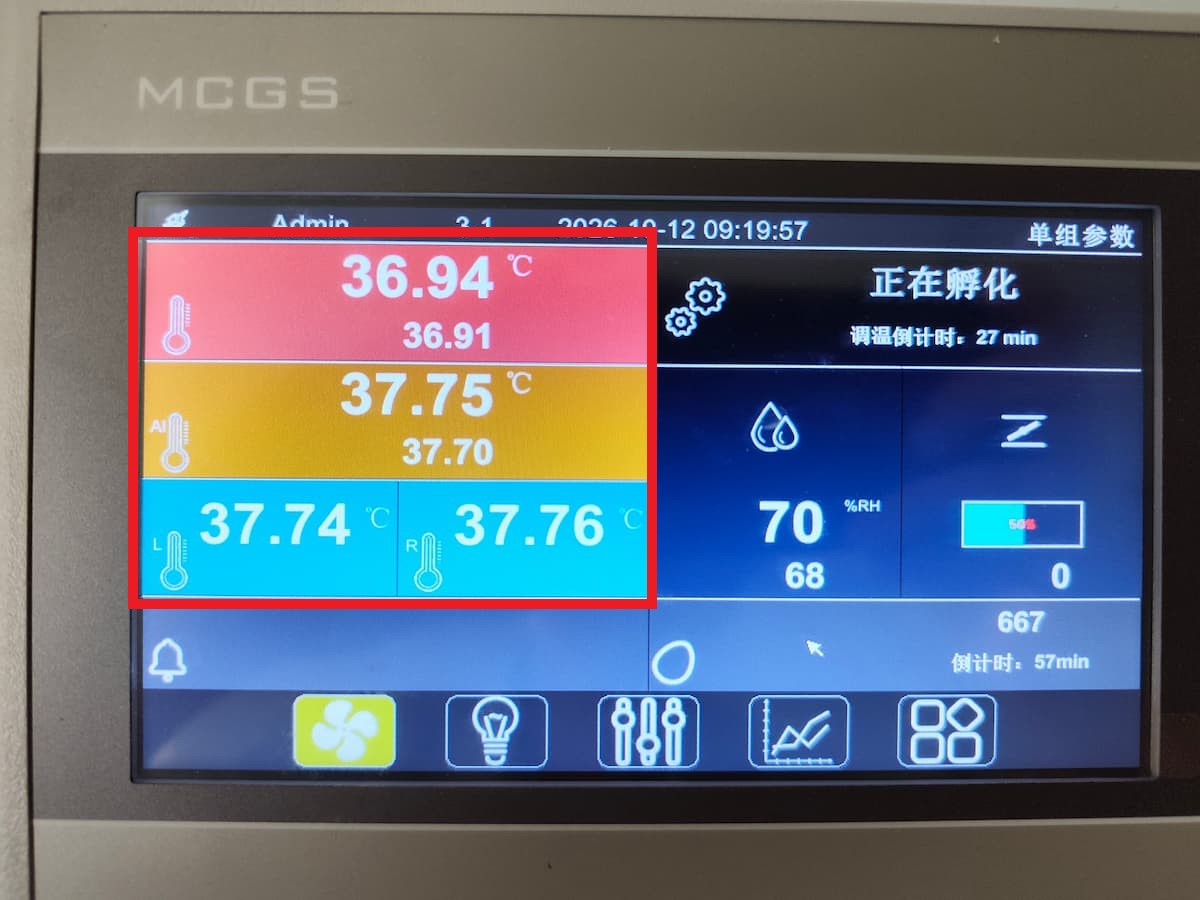
This large area is the temperature area. The red block below is the master control temperature; the orange block in the middle is the AI-controlled temperature; the two blue blocks below are the left and right tunnel temperatures.
The master control temperature is the temperature at the end nearest the screen and farthest from the fans — the outlet. The left and right tunnel temperatures (also called the return side) are measured at the side away from the screen, below the fans — the inlet.
The red and yellow blocks each show two numbers. The upper number is the live reading, the lower one is the set point. Note one detail: the orange AI-controlled temperature reading is simply the average of the current left and right tunnel readings.
Intelligent temperature control can be switched on or off. When it is on, the programme adjusts the master control set point by itself, which in turn changes the AI-controlled temperature.
2.2 Humidity and damper
Section titled “2.2 Humidity and damper”The water-drop area is humidity. Again, the small number below is the set point and the large number above is the live reading. To its right is the fresh-air damper, which adjusts automatically with temperature: a blue block means open, a black block means closed. A reading of 0 means the damper is at its zero position — but on tunnel setters a certain gap remains even at zero to keep air moving.
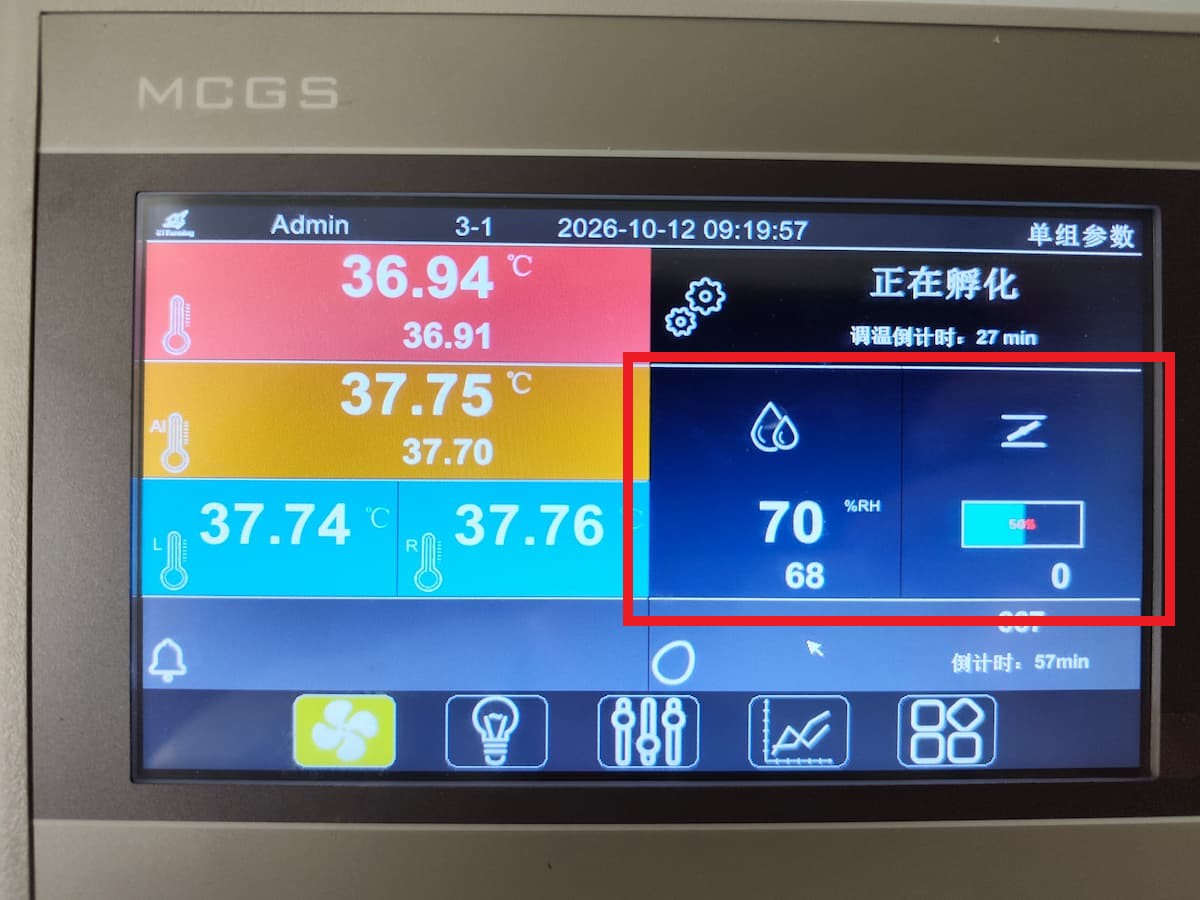
A damper reading of 50% only indicates a certain opening, not the actual opening angle. If it reads 100%, the damper is fully open and there is a risk of overheating; check that the water cooling and climate control systems are working properly.
2.3 Turning area
Section titled “2.3 Turning area”2.3.1 Turning check window
Section titled “2.3.1 Turning check window”There is a long strip in the lower right corner with an egg icon — this is the turning area. Tap the number in this area to open the turning check window.
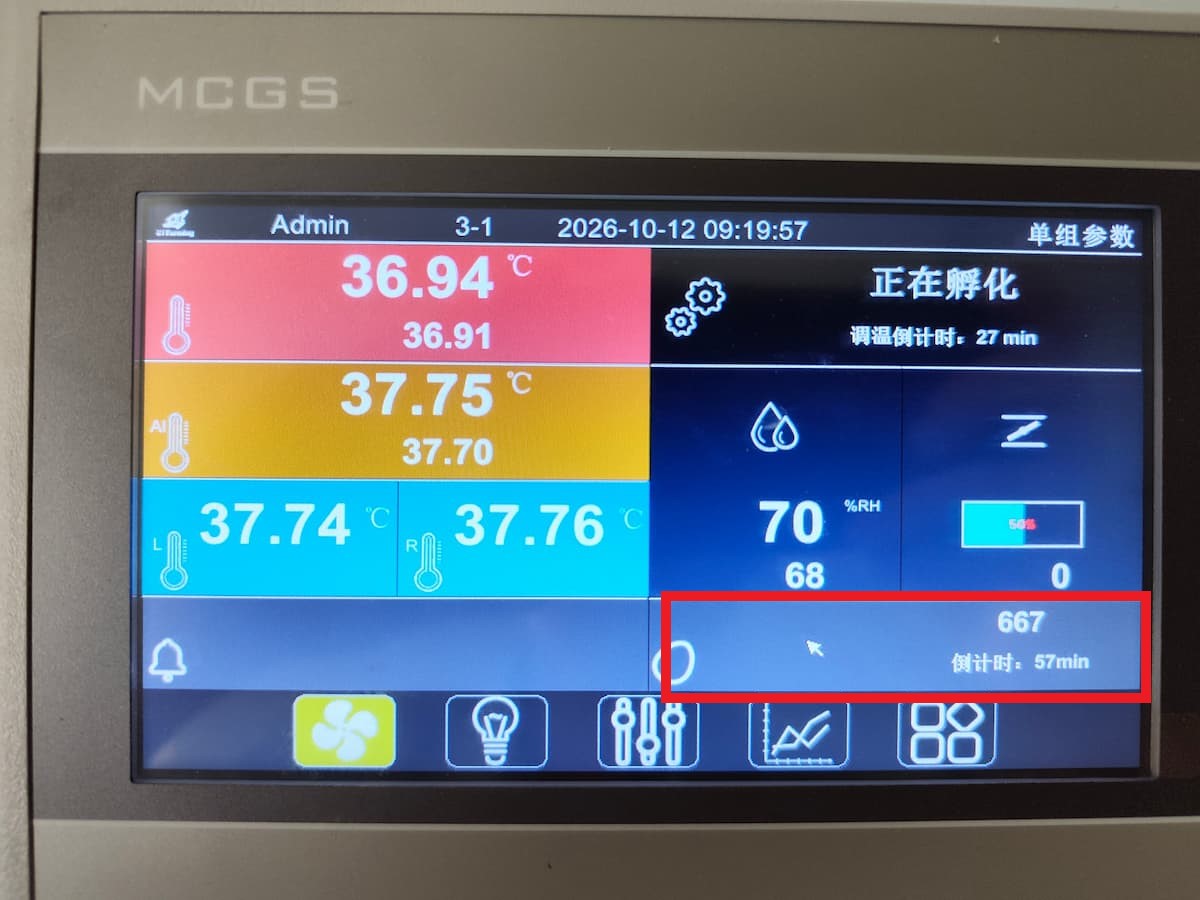
Here you can set the turning interval and whether each trolley is checked.
The turning interval is set according to your needs; 60 minutes is the usual value.
2.3.2 Whether the trolley is checked
Section titled “2.3.2 Whether the trolley is checked”Look at the picture: the block below represents the control cabinet — where you are standing now. From near to far, 1-5 to 5-1 on the left and 2-5 to 2-1 on the right are the actual trolley positions. Tap an individual trolley to enable or disable its check. When the check is disabled, no prompt appears in the software even if the hardware raises an alarm. Disabling the check is only permissible once the mechanical structure, the air circuit and the turning function are confirmed to be working.
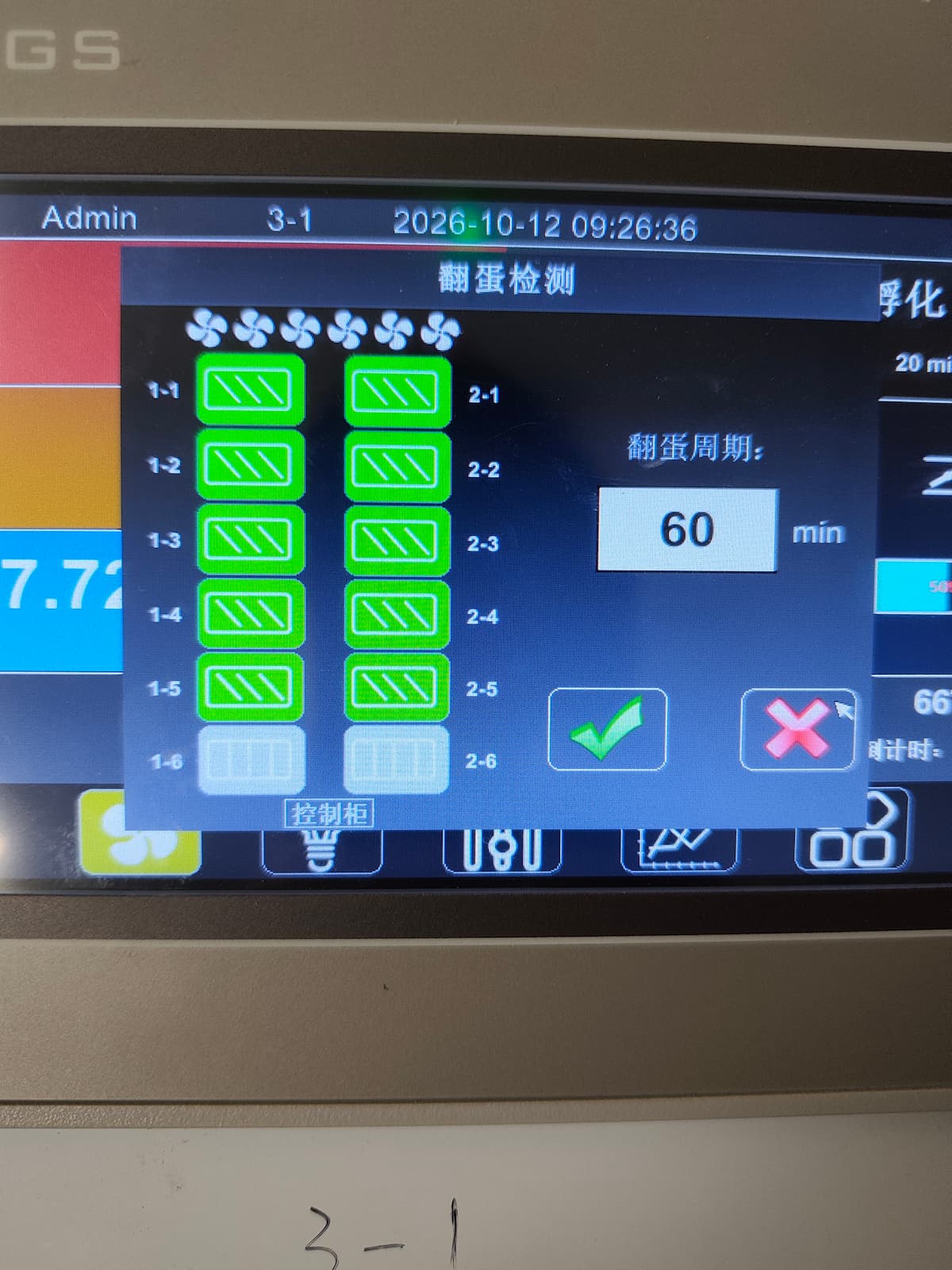
Use it when: ① The position holds no trolley. Every turning cycle re-checks all positions, so an empty position with the check enabled would raise an alarm each cycle and confuse diagnosis. ② The detection mechanism is faulty. Replace the hardware; details omitted.
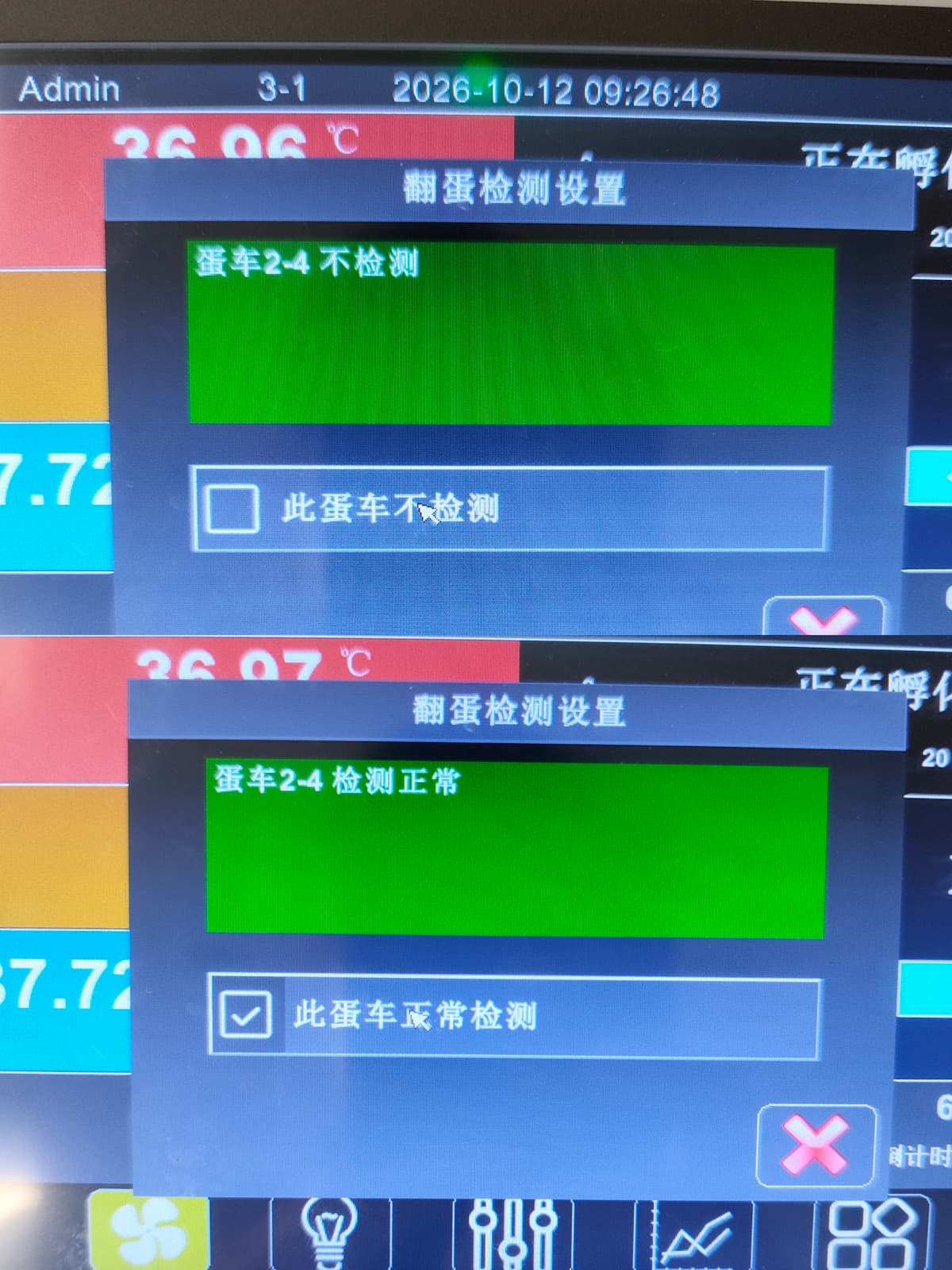
2.3.3 Turning alarm right after setting
Section titled “2.3.3 Turning alarm right after setting”Another case produces a turning alarm: just after setting, the reed switch signal is unstable and reports a catch that will not release. Ignore it — simply confirm that the line inside the trolley box is slanted rather than upright; it recovers by the next turning cycle. If the box line is upright, check whether the trolley is in its correct position; in most cases the trolley has been pushed too far or not far enough.
2.4 Alarm area
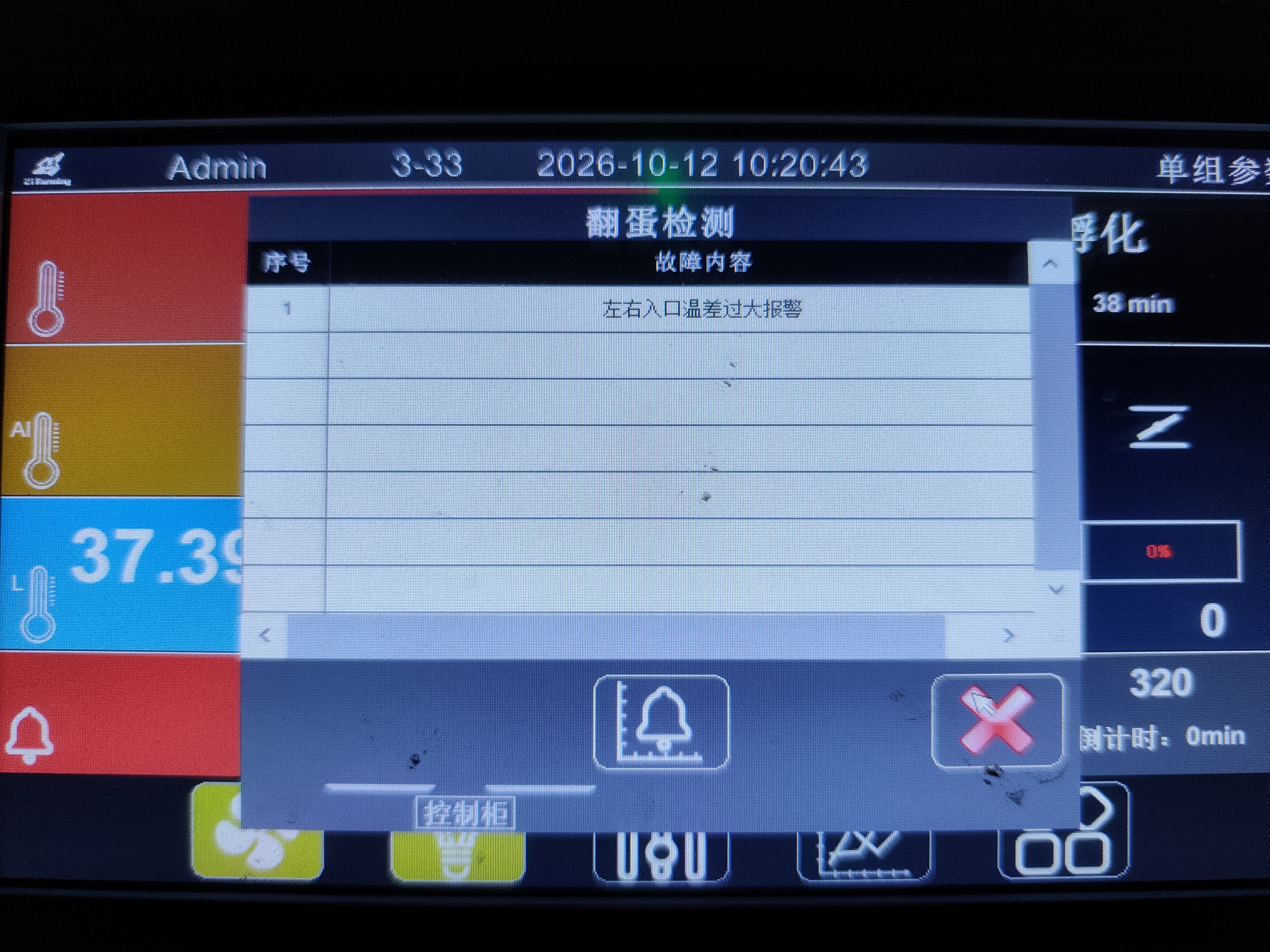
Section titled “2.4 Alarm area”The small bell in the lower left corner is the alarm area. In the event of an alarm it turns red and shows the current alarm; an alarm window pops up automatically with the fault description.
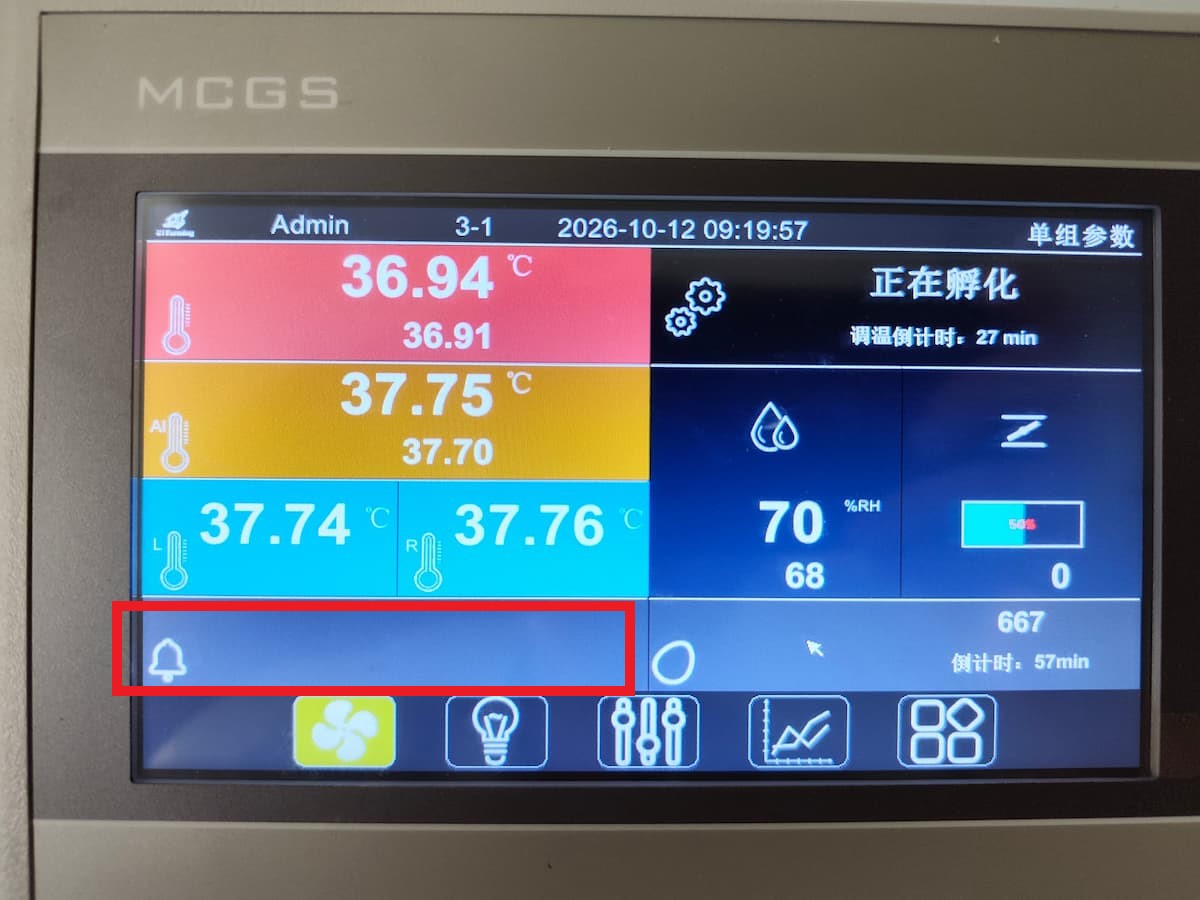
The lower left corner of that window is acknowledge, which stops the audible alarm and reduces noise. The visual alarm does not clear, because the fault is still there: the indicator keeps flashing red to remind operators to deal with it.
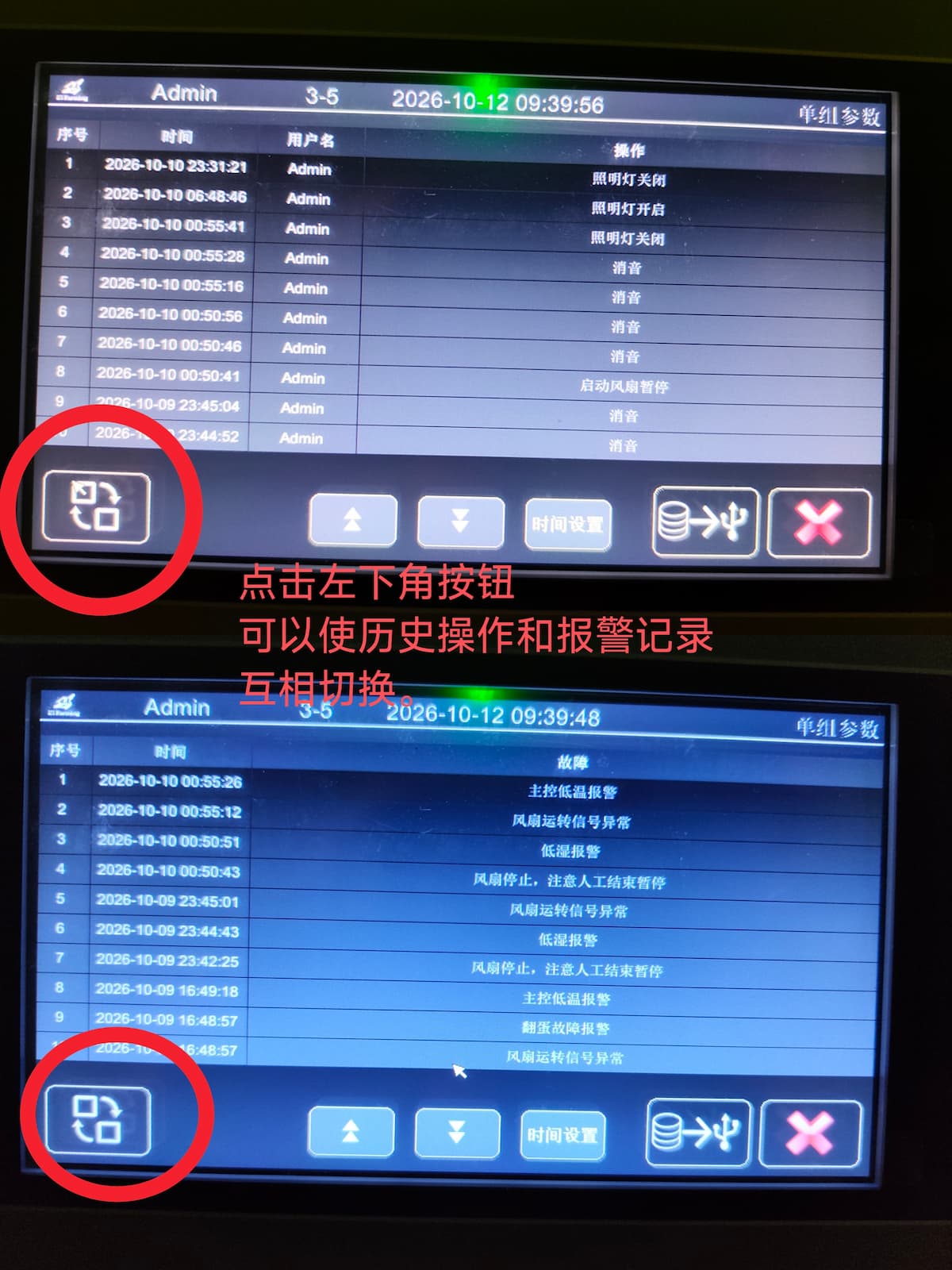
The middle is the alarm log. Tap it to open a new window with earlier alarms.
Tap the two squares in the lower left corner to switch to the operation history. The windows in the middle are previous page, next page, save-time setting and USB import; the red cross closes the current window.
3 Parameter adjustment
Section titled “3 Parameter adjustment”To change a parameter, tap its block directly, or use the third button in the navigation bar below. Both routes lead to the same page.
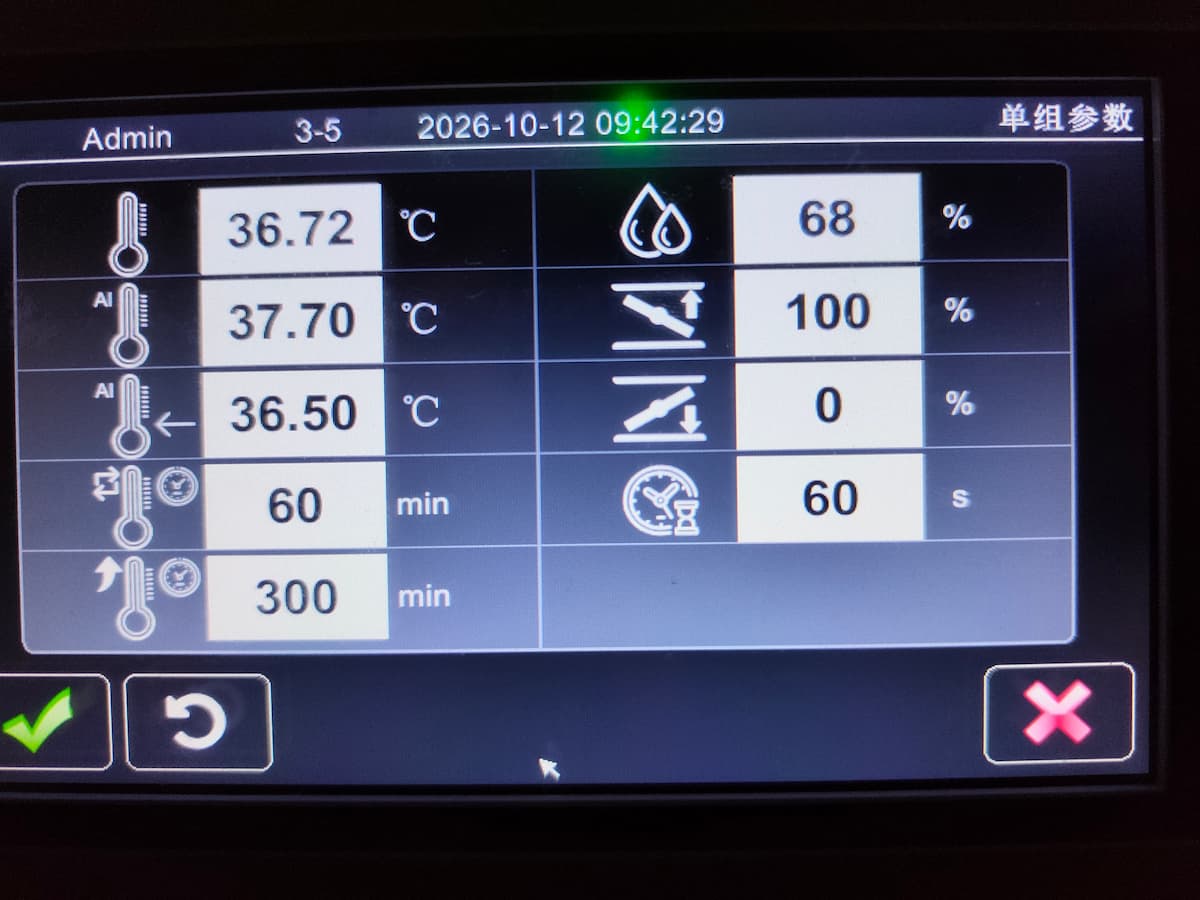
In the left column, from top to bottom: master control temperature set point, AI-controlled temperature set point, lower limit for the AI set point, AI control interval, and the warm-up duration after new eggs are set. The right column, from top to bottom: humidity set point, damper upper limit, damper lower limit and the delayed start time after power-on.
The basic ones need no explanation. A few notes on the rest:
① Lower limit of AI control: the master control set point may not be lowered below this value. ② AI control interval: how often the adjustment happens. The example shows 60 minutes, meaning every 60 minutes the current return-side temperature is evaluated and a decision is made on whether to change the master control set point. ③ Warm-up duration after setting: newly set eggs are cold, and when the machine detects the temperature drop it enters warm-up mode. The example shows 300 minutes, which raises the temperature gradually to avoid heat stress on the whole batch of freshly set eggs. ④ Delayed start: this prevents a plant-wide power restoration from starting every machine at once, when the inrush current would disturb the factory electrical network. Machines can be grouped and started in sequence to avoid the current spike.
4 Basic operations
Section titled “4 Basic operations”4.1 Fan pause
Section titled “4.1 Fan pause”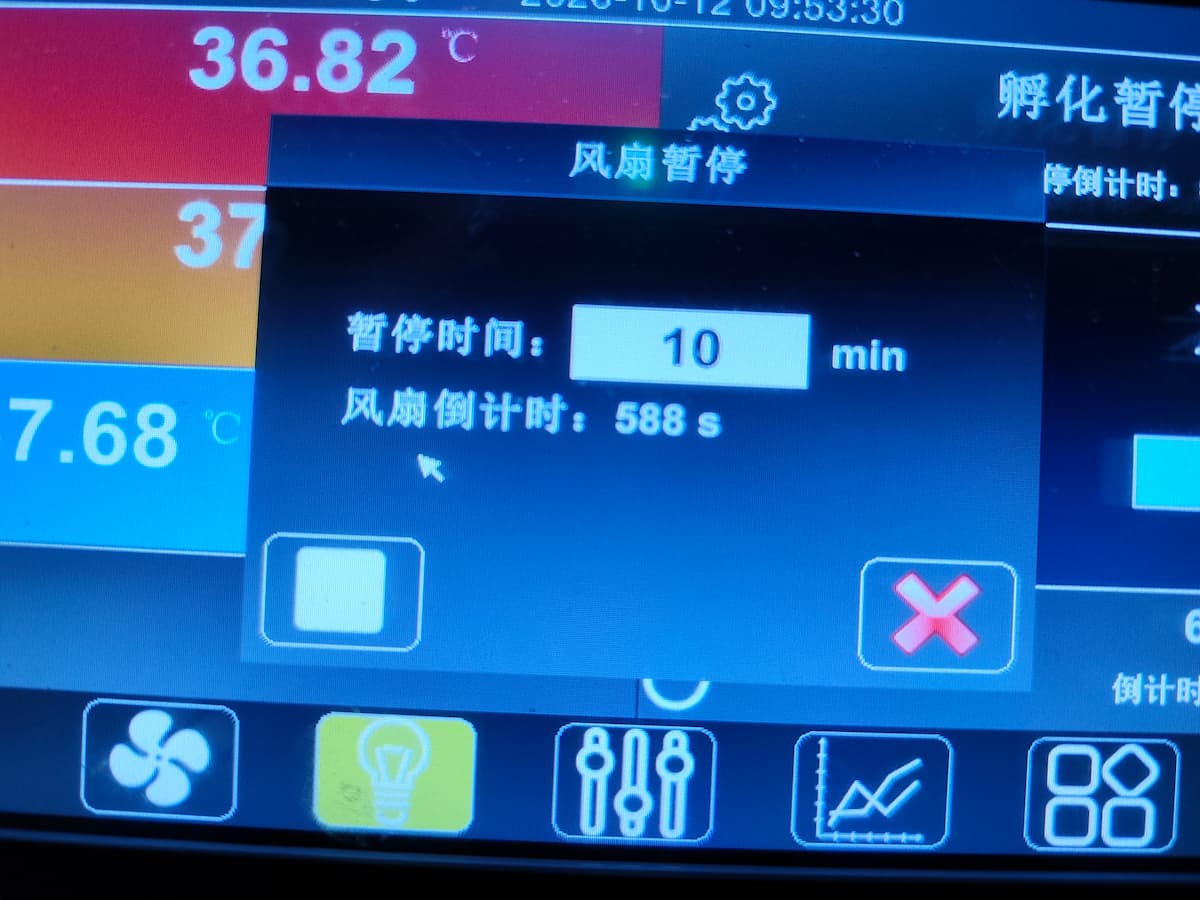
Tap the fan button to open a pop-up. Tap the white time field in the middle to choose the pause duration.
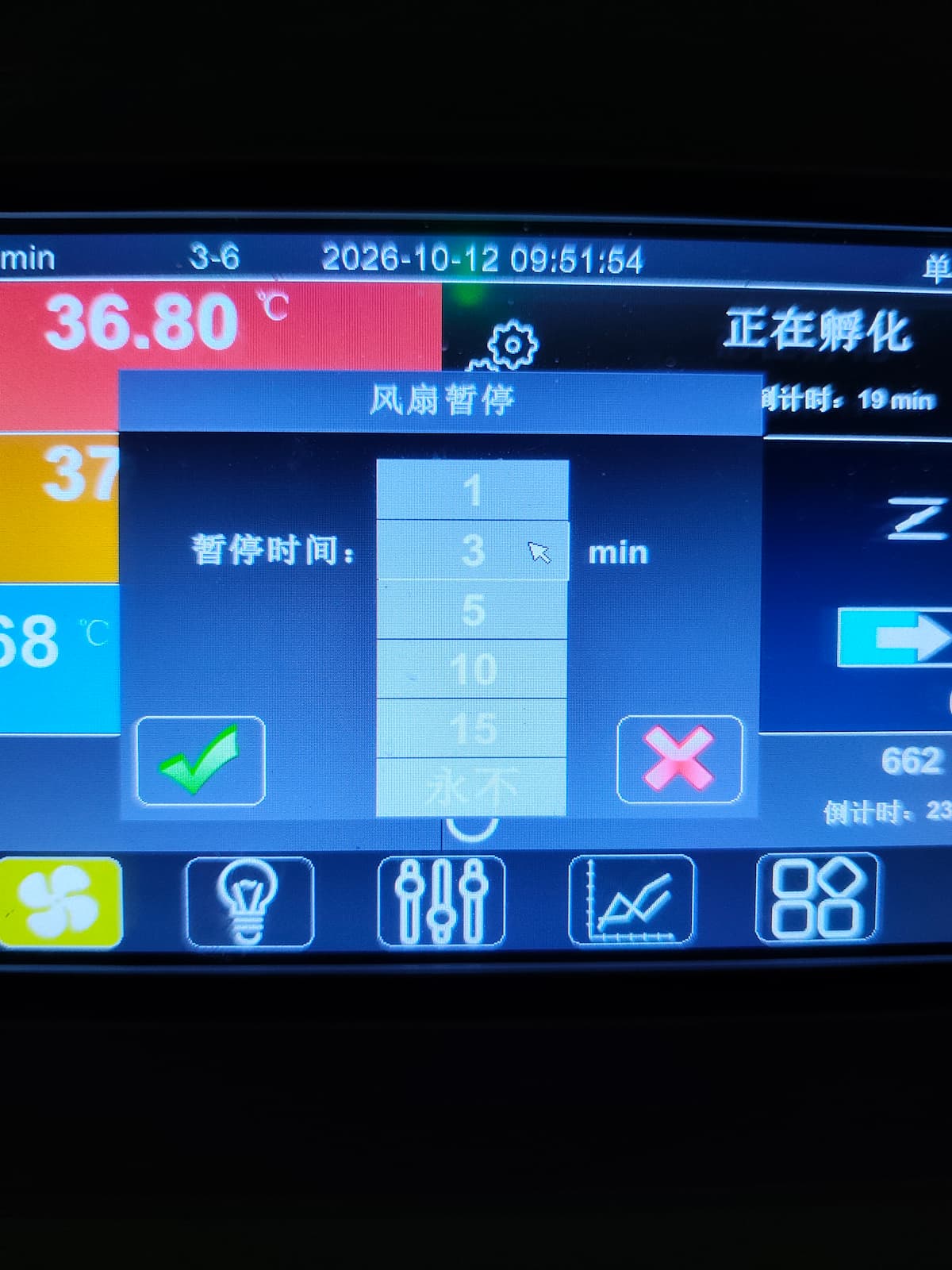
To end the pause early, tap the white box.
4.2 Lights
Section titled “4.2 Lights”Tap the bulb in the navigation bar below: a lit bulb means the light inside the cabinet is on, a dark bulb means it is off.
4.3 Probe calibration ★
Section titled “4.3 Probe calibration ★”This is very important.
A tunnel setter has one master control probe, one auxiliary control probe, one probe for each of the left and right return sides, and one humidity probe.
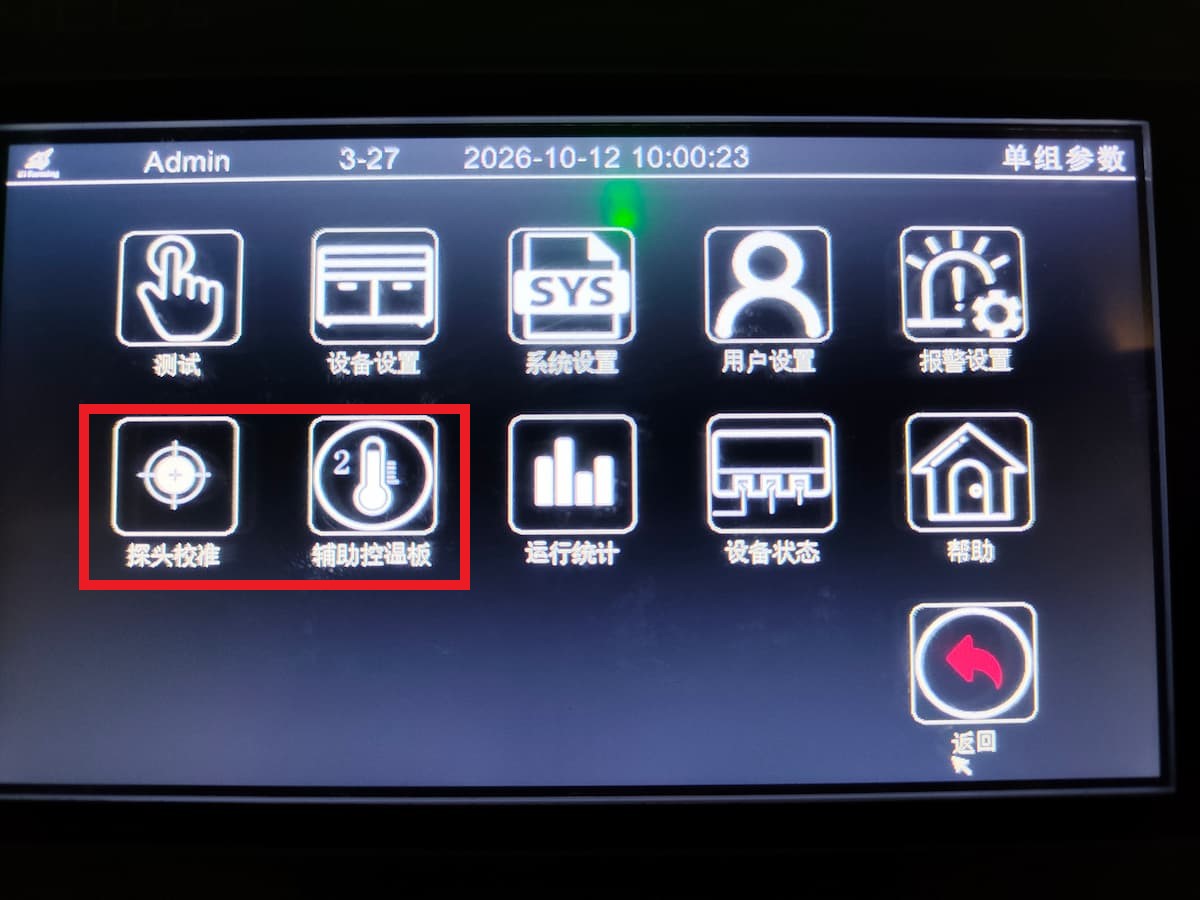
Tap the four-small-squares button in the lower right corner to open the menu page. Probe calibration and the auxiliary control board are the pages you need. Each is explained below.
4.3.1 Temperature calibration page
Section titled “4.3.1 Temperature calibration page”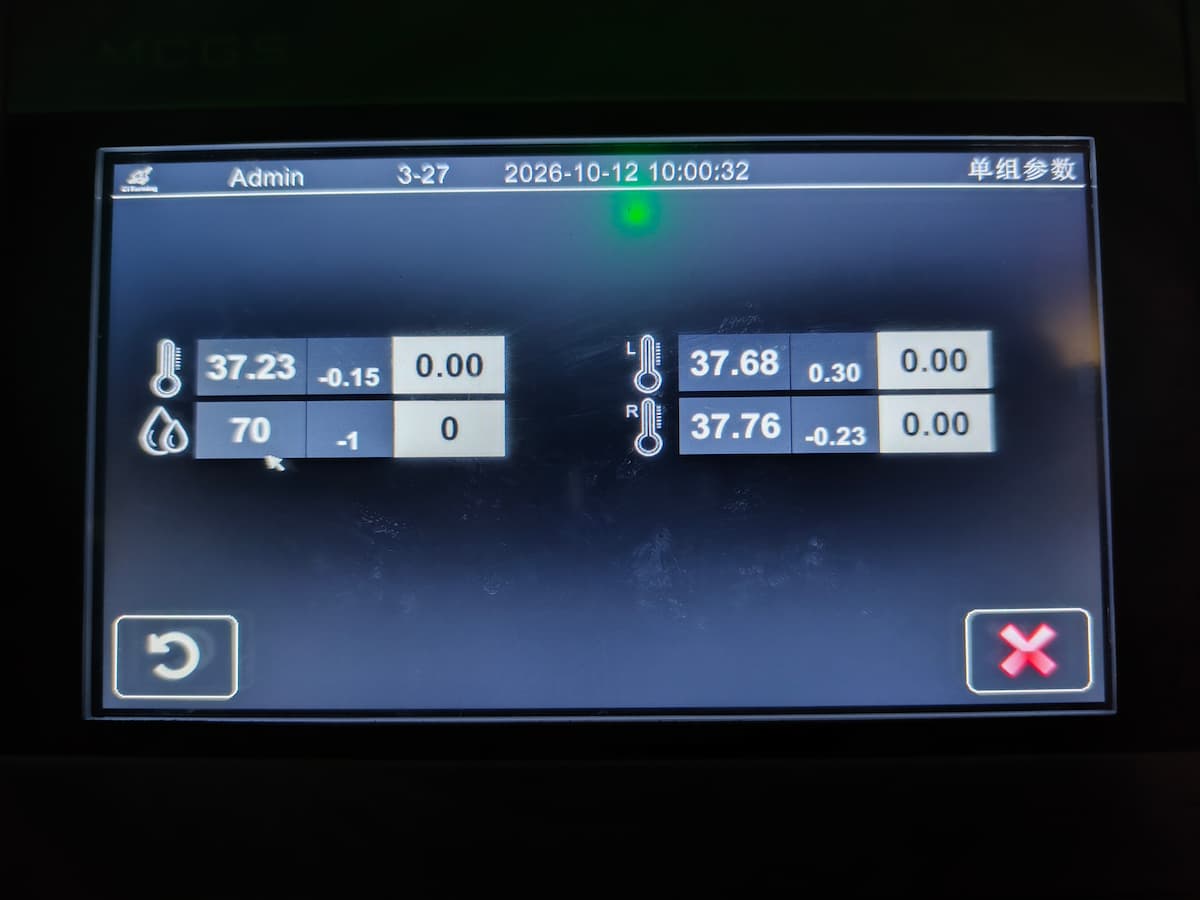
As shown: in the left column, the upper field is master control temperature calibration and the lower field is humidity calibration; on the right, L is left tunnel temperature calibration and R is right tunnel temperature calibration.
4.3.2 Auxiliary control board page
Section titled “4.3.2 Auxiliary control board page”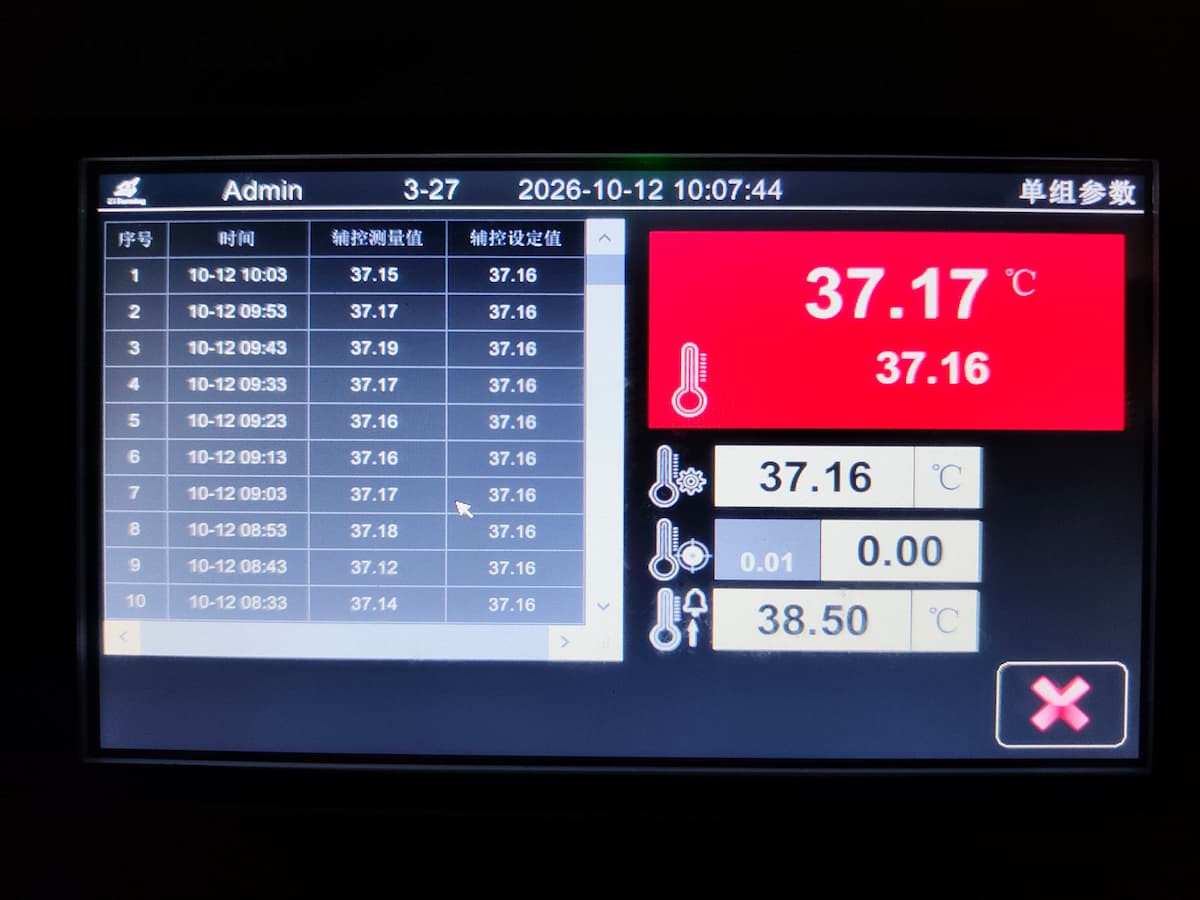
The auxiliary control board is essentially a backup: if the main board fails, the auxiliary board can take over. The large red area on the right shows the auxiliary board’s current temperature and set point. The three fields below are:
① Auxiliary board set point (it follows the main board set point automatically — no manual change needed). ② Auxiliary board probe calibration; this is the value used to calibrate the auxiliary probe. ③ Over-temperature alarm value; above this value the machine raises an auxiliary over-temperature alarm.
4.3.3 Calibration advice
Section titled “4.3.3 Calibration advice”Two people are recommended. One stays inside the cabinet for about 5 minutes until their own body temperature and the temperature field have stabilised, then passes the reading to the person outside by phone or through the viewing window. This keeps disturbance of the temperature field to a minimum and makes the calibration accurate.
If you are short-handed, a single operator must work quickly — read the value and finish the calibration in the shortest possible time to limit disturbance of the temperature field.
4.3.4 Calibration principle
Section titled “4.3.4 Calibration principle”Calibrate repeatedly. After one calibration, wait 5–10 minutes until the temperature is stable, check again and recalibrate if there is still a deviation, until the deviation is below 0.05 °C. This guards against large errors caused by temperature-field fluctuation or operator mistakes.
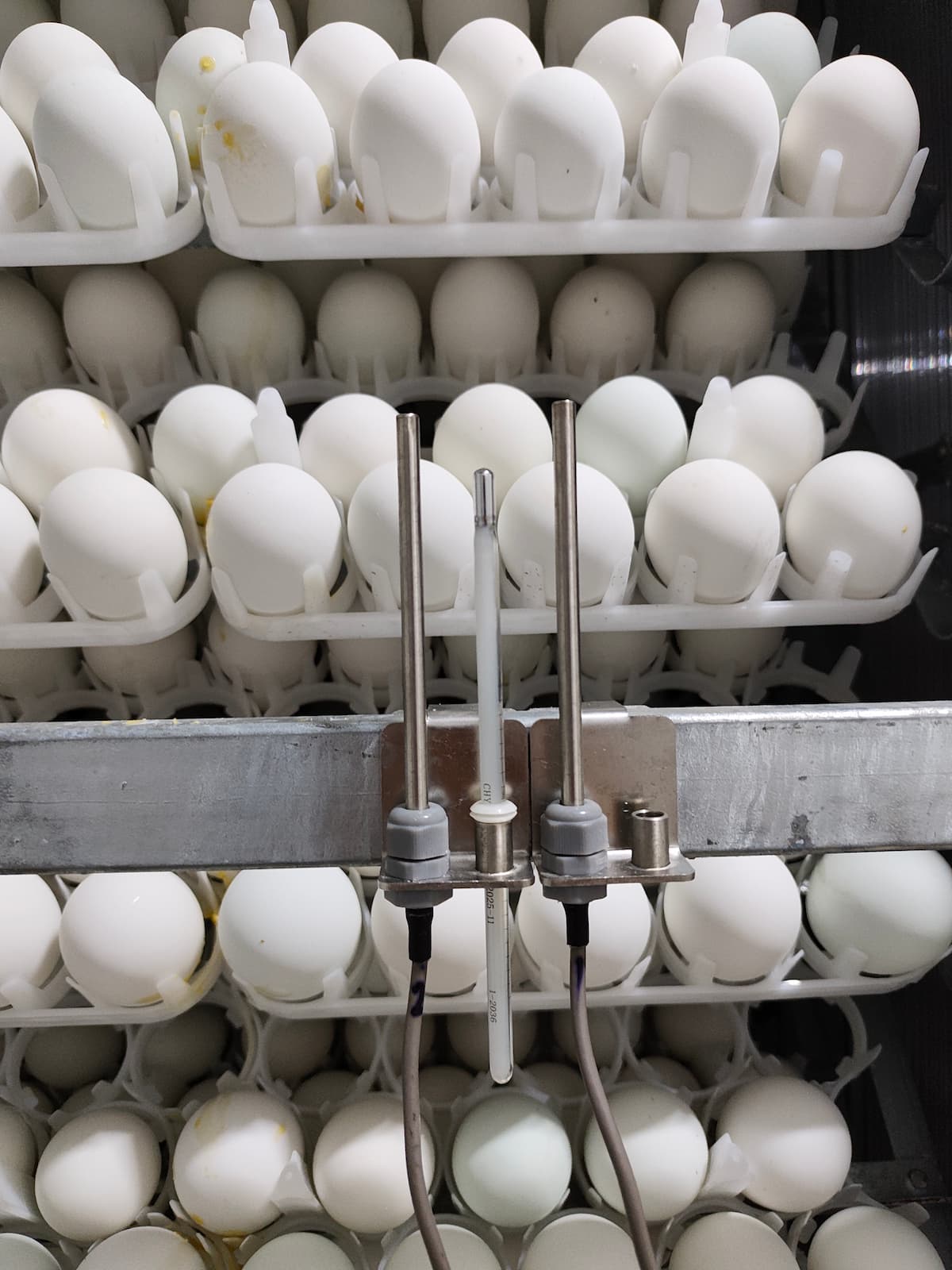
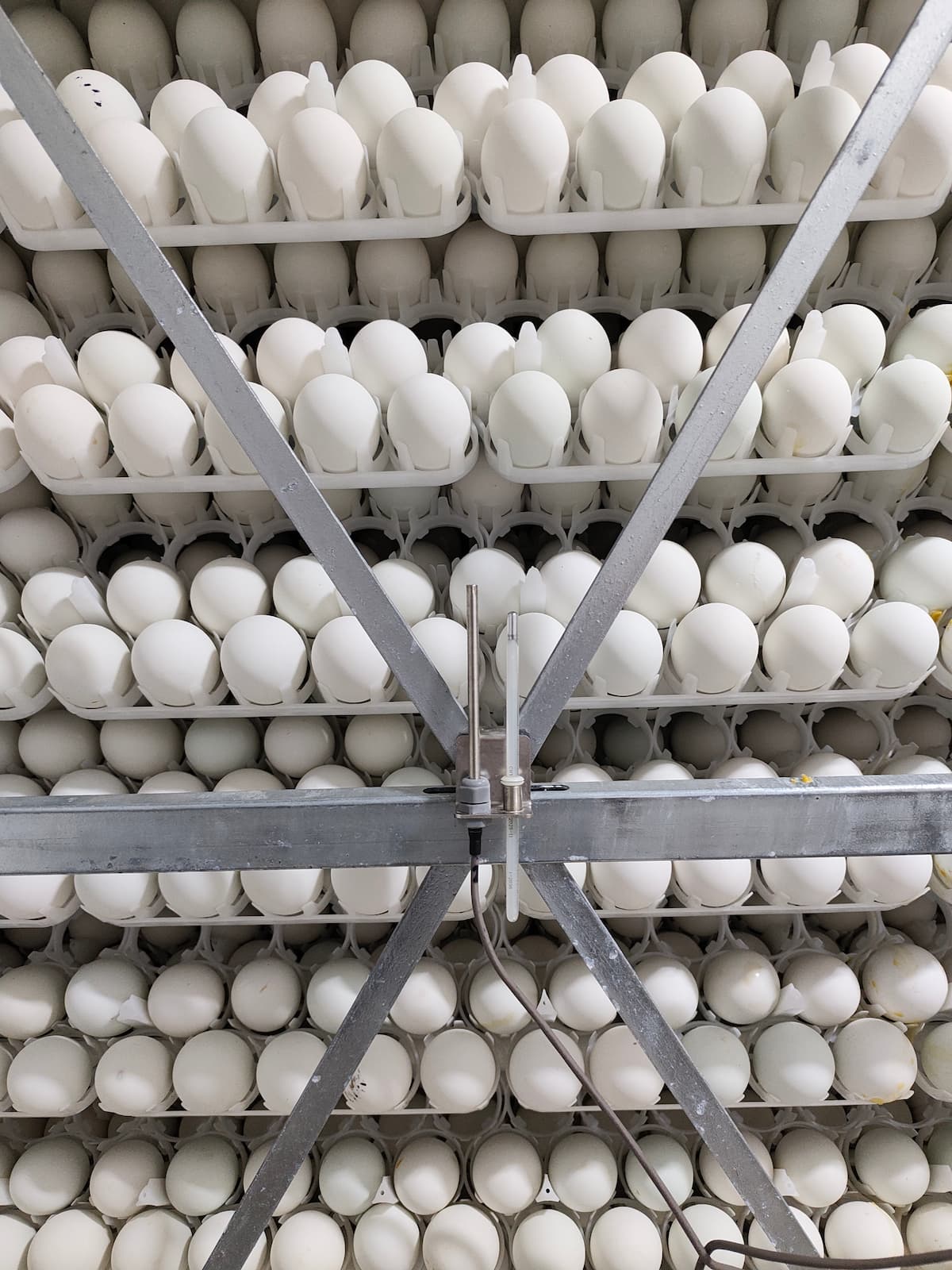
4.3.5 Placing the thermometer
Section titled “4.3.5 Placing the thermometer”The master control thermometer sits behind the screen. Read it at eye level. When calibrating the return side, put the two probes together, wait for the temperature to stabilise, then write the value into both the left and right tunnel calibration fields. After several correct calibrations, place the probe bracket at the fork-shaped junction of the trolley. Thermometer and probe positions when calibrating the return side
II. Advanced operations
Section titled “II. Advanced operations”Contents / Navigation: 5 Hardware test window 6 Device settings window 7 System settings window 8 Device status
5 Hardware test window
Section titled “5 Hardware test window”6 Device settings window
Section titled “6 Device settings window”6.1 Enabling and disabling functions
Section titled “6.1 Enabling and disabling functions”6.2 Wrench icon settings
Section titled “6.2 Wrench icon settings”7 System settings window
Section titled “7 System settings window”7.1 Function overview
Section titled “7.1 Function overview”7.2 Screen timeout and date
Section titled “7.2 Screen timeout and date”8 Device status
Section titled “8 Device status”III. Supplementary notes
Section titled “III. Supplementary notes”Contents / Navigation: 9 Trolley placement 10 Trolley curtains 11 Placing the thermometer